Before transitioning from a "local" login (meaning your account credentials are governed locally on the computer vs. by Okta, there are a couple of things you'll need.
- Your Okta login (i.e. your email address) and password
- Unsure of your password? Go to https://milestoneinc.okta.com to check.
- Your existing computer password
- Okta Verify installed and set up on your phone
Below is a video of the process, but in broad strokes:
- Enter your email address and *Okta* password
- Verify with a form of multi-factor authentication
- Choose your *existing* local account when prompted to select an account. Most likely, this will be the account bearing your name.
- Enter your existing local password (i.e. whatever password you have always used to log into your computer)
- That's it! Now, going forward, you will always login with your Okta password. Your old local password is no longer valid.
Troubleshooting:
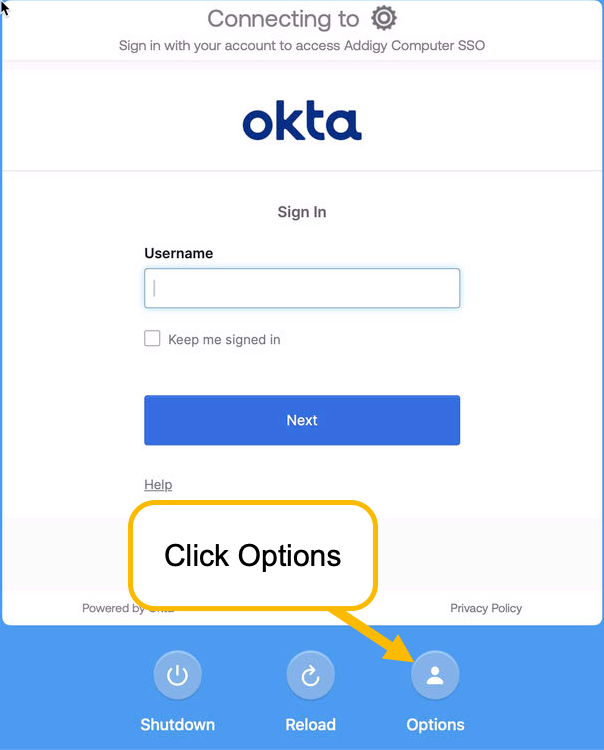
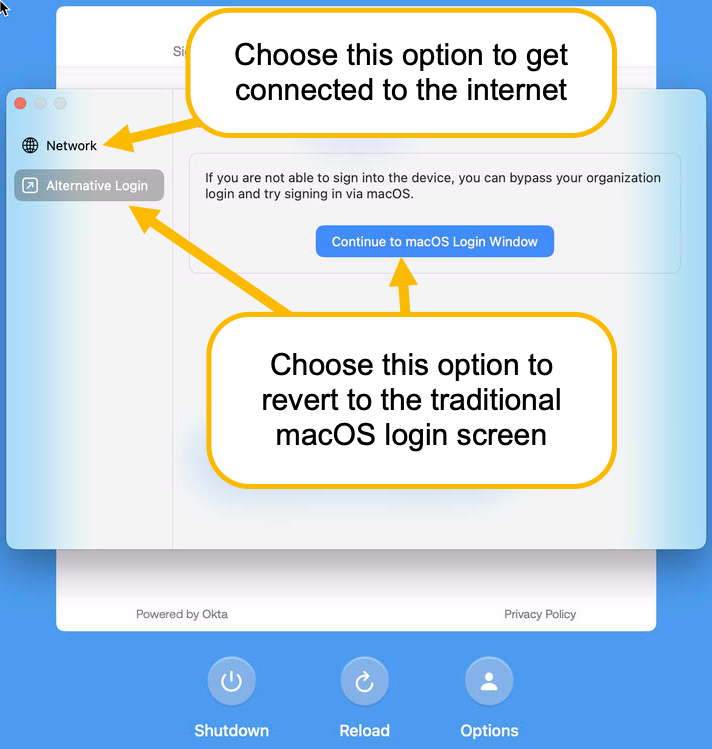
If you ever run into issues such as being disconnected from the internet or otherwise having issues with the Okta login, you have a couple of features available to you from the login screen. These options will allow you to connect to a new network or revert to the traditional macOS login screen (i.e. bypass the Okta login).
If you do revert to the traditional macOS login screen, your password will still be your Okta password. This is essentially an "offline" version that's handy if you're on a plane, for example.